Article B6: Write a Tutorial: Making an Animated Logo Gif

Making a GIF on Photoshop sounds likes something you cant do, but you definitely can. I will show you that it is as simple as counting from one to ten. You are going to have to get your base though so you can actually get started, perhaps you can make it in Illustrator or get it from screen shots from a different program or what have you. So boot up Photoshop and get started on this fun project, this could be very useful for anything you want to do in the future. So lets get to the first step.

Step One; Make your subject

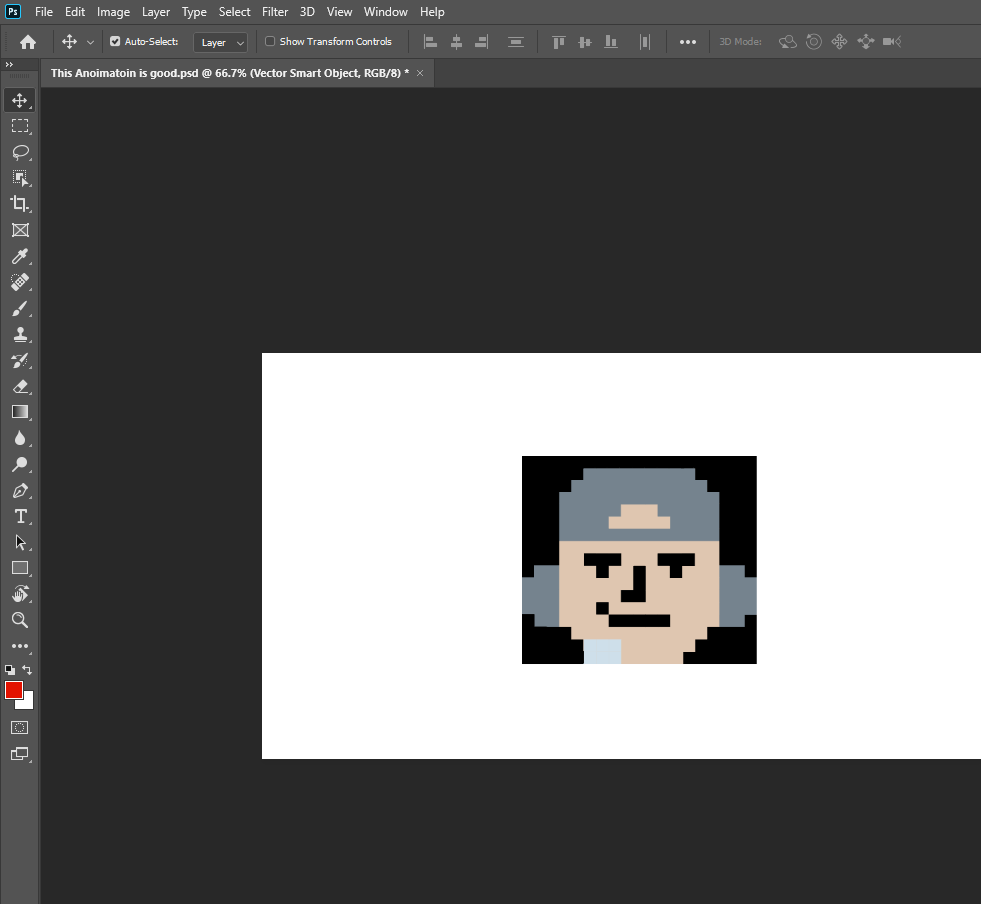
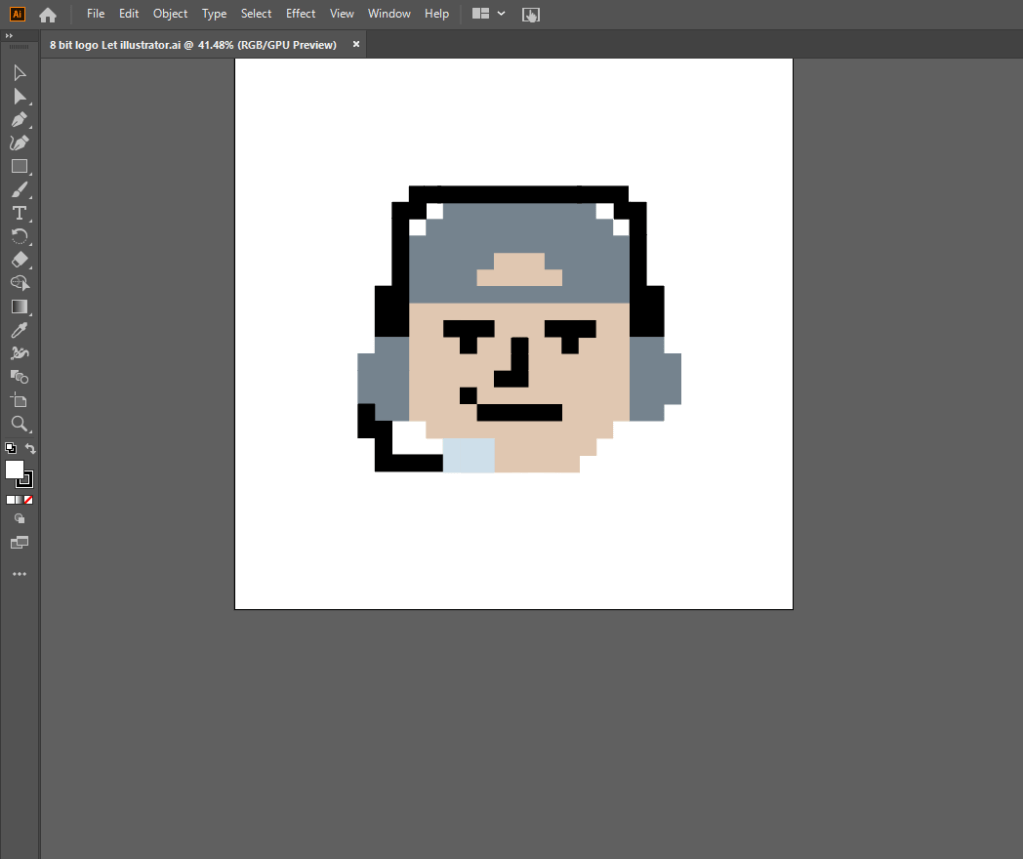
First you get your subject for your logo whether you make it in illustrator, or just get something else from your computer, you can use it to make this GIF. Make sure you have a reference for your logo, like so…..

This is required if you want to have a logo. So any way, on to step two.

Step 2 Import into Photoshop

Putting in your image into Photoshop is quite simple, all you have to do is drag the project from the illustrator program and then plop it into Photoshop and then start to animate it. I suggest you have different animation frames in illustrator before you begin. This next step is the most important.

Step 3; Animate

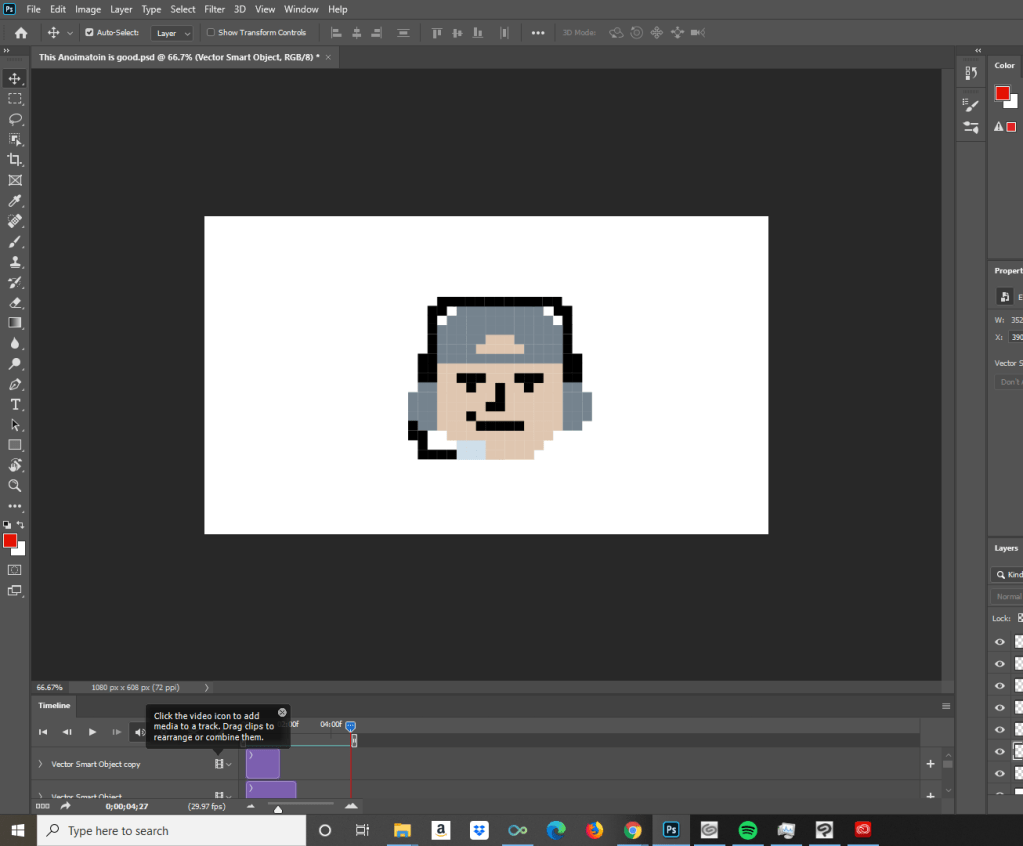
To begin the animation all you have to do is open the Window tab and then you select the Timeline tab. Select the layers that you want to use and drag them into the timeline, they will be the frames of animation. The purple bar represents how many seconds the frame will appear for. Test your animation over and over again until you are satisfied with it, you will know when that will be. Now for the final step.

Step 4; Export as a GIF

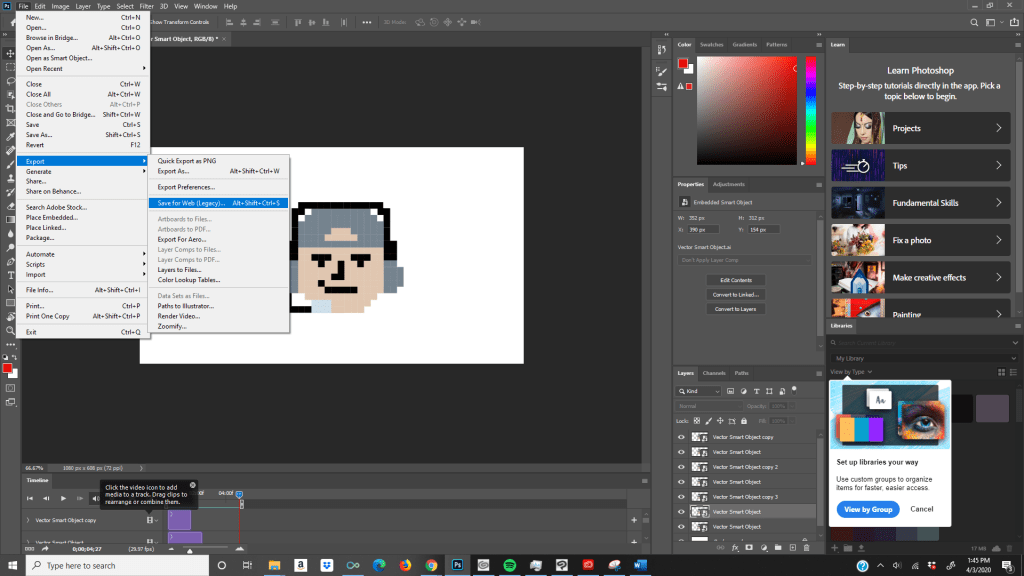
To finish your GIF so you can share with anyone you want, all you have do is hover over the File tab and look for another tab called export, and then you must go to Save for Web (Legacy) When you get there, you change the file type to a GIF format. Make sure everything is in order and your sure that it works, press the save button and put in whatever file you want. Then you are done! You just made a GIF in Photoshop, pat yourself on the back why don’t you? Anytime you forget this, come back to this tutorial, you can thank me later.

Tutorial to RGB to CYMK for Printing

Featured image https://unsplash.com/@grohsfabian

Graphic Art is a very important job for a multitude of reasons that I’m sure you already know, for packaging of every product in the entire world its very useful, otherwise it would just be a blank picture on the box and you wouldn’t know what your buying, it is a very profitable job, and it helps you get art skills improved, so the point of this specific article is to teach you how to convert RGB and CYMK to printing for your work. Lets start to talk about it then and not waste any more time.

Lets start the RGB Tutorial

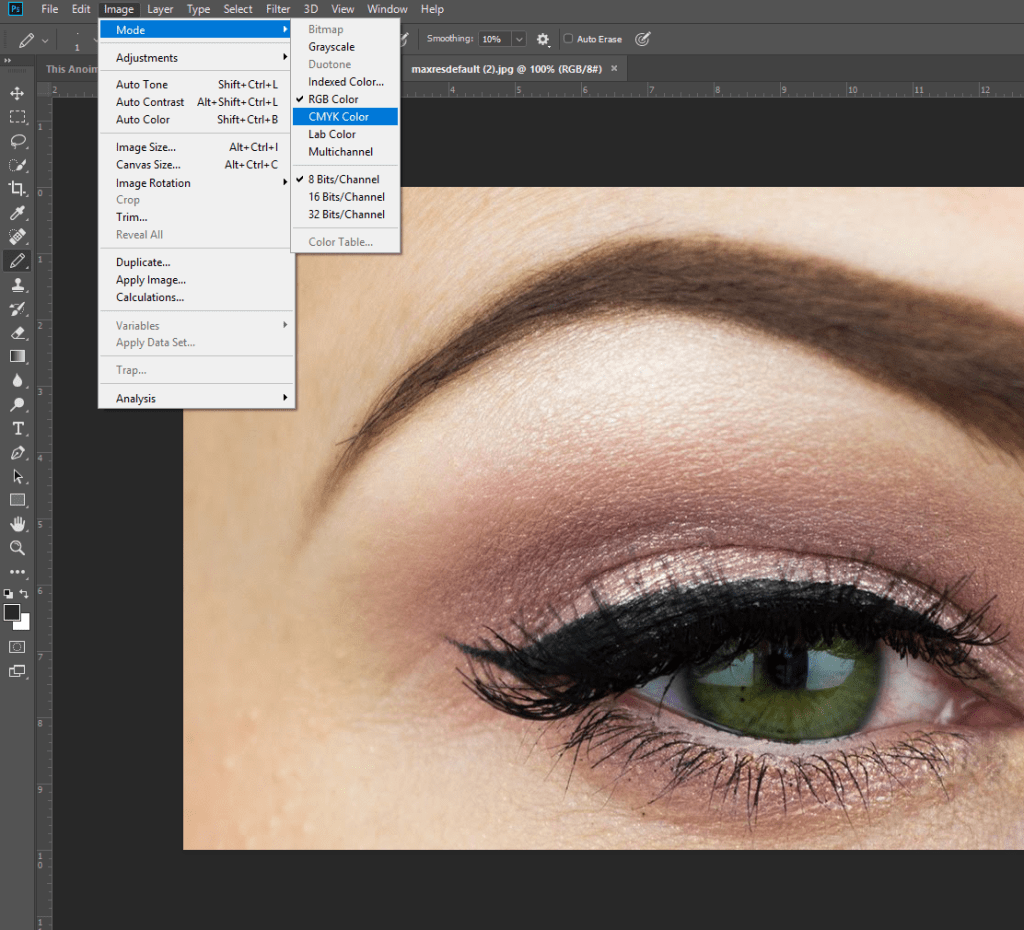
Step 1; This part is for Photoshop by the way. This is very simple to do and is a very useful tutorial so pay attention. One of the many ways to do this is go to the image tab, hover over the mode tab, and you will see various different options like gray scale, indexed color, and lab color, what you want to look for is to check the tab that says CYMK.
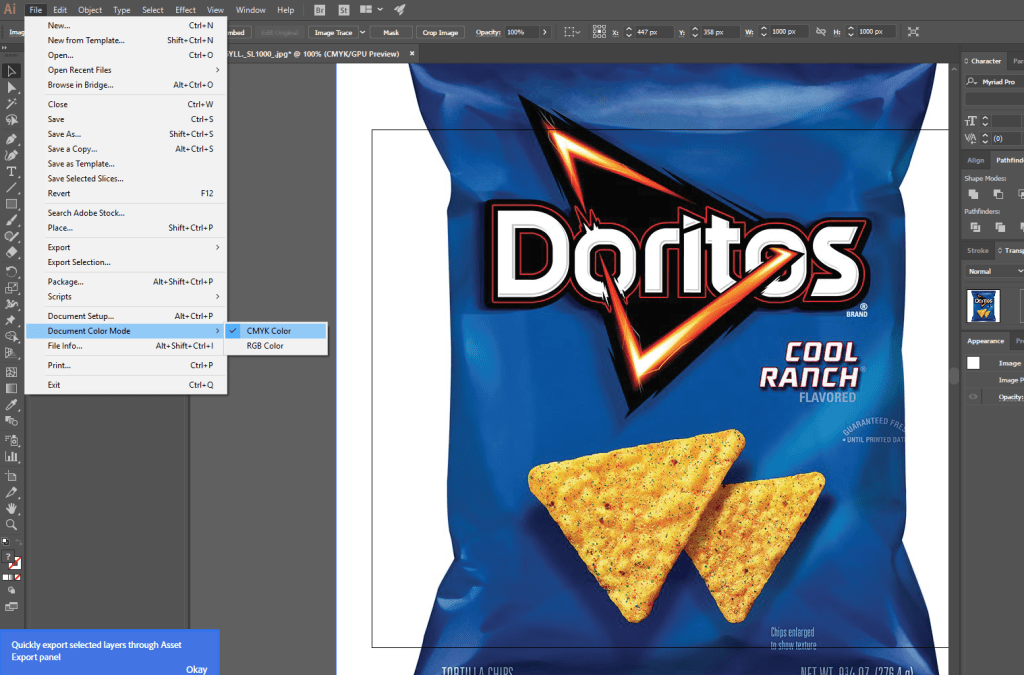
Step 2; The next step here is how you use this in Adobe Illustrator. This is very similar to what you do in Photoshop so don’t fret. Go to the tab on the top of the screen that says File, then you move your mouse right on down to the Document Color Mode sub menu. There are only two options for this tab, CYMK and RGB Colors, press CYMK.
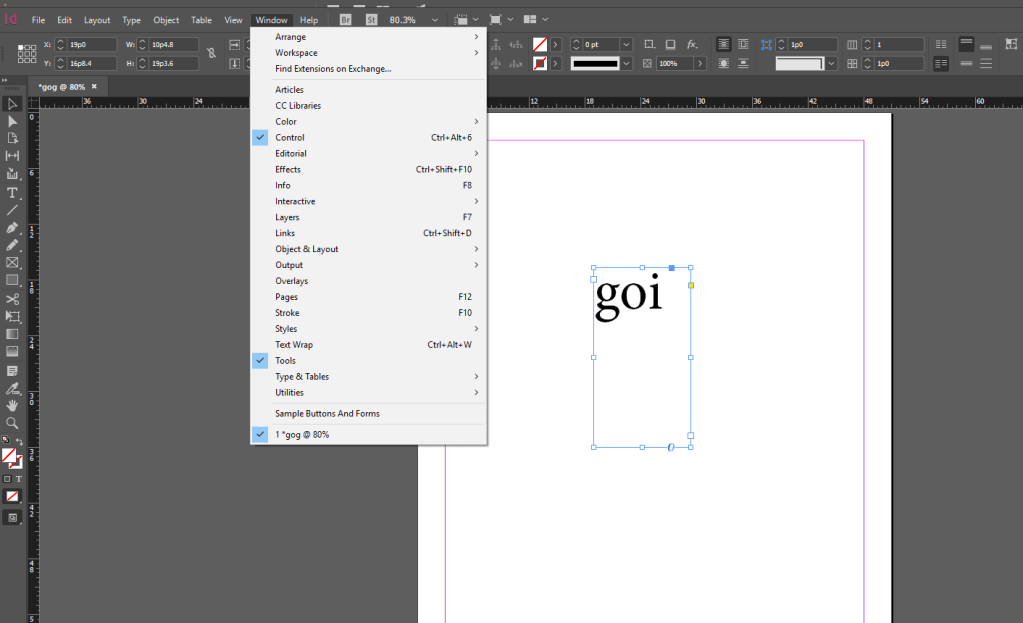
Step 3; This last step here is in the adobe illustrator program, this might not be as straight forward as the other two steps so bare with me please. First off, open your self a new document for the purpose of learning if don’t have one already. Press Print on the document selector, and when you open it, click the selection tool, go to the tab that says Window, after that, go to the color tab, and then press a tab that also says color, don’t get confused now. The color panel will open from there, and then you can adjust the colors, set the atributes to
c = 100 m = 100 y = 100 k = 100 and then it will be cmyk. For RGB set it to R = 57 G = 46 B = 122.

That is all you need, Have fun!

So now you know how to set your document from RGB to CYMK on Photoshop, Illustrator and Indesign. Make art to your hearts content.

Web Safe Colors, Spot Colors, Hex Colors, CMYK and RGB Color Codes

Featured Image by https://unsplash.com/@markusspiske?utm_source=unsplash&utm_medium=referral&utm_content=creditCopyText

This article will be talking a lot about colors on websites, they are very important to the style or aesthetic of your website, you may not think much about it, but its very true. Colors on a website can make you think of the brand in a certain way, it can be intense, it can be soft, and other different vibes. It usually takes a while to come up with a fitting color palette or combination that is good. I will tell you how to use these colors correctly, but first, you have know about the terms.

What is a Web Safe Color?

A Web Safe color, or browser safe color, are colors that consists of 216 colors that display consistent colors on any computer or device capable of displaying 8 bit color. They were only created for that reason, as for how they are used today, it seams like its not used as often as they used to be. Most web safe colors are kind of ugly and not pleasing to the eyes. There are better color choices nowadays than just using web safe colors. Now going into different types of colors once more….

What is a Spot Color? Why were they made? How are they used today?

”In offset printing, a spot color is any color generated by an ink (pure or mixed) that is printed using a single run. The process of offset printing in full color consist of Cyan, Magenta, Yellow and Black (CMYK)”. This is the source of this definition. https://www.printoutlet.us/spotcolor.php

They were created for the purpose of company colors on a printed paper, the use of a spot color is utilized. They use it mainly because they want to maintain the color fidelity or accuracy of the color throughout the print run. As said by this person: https://www.quora.com/What-is-the-purpose-of-spot-color-printing

They are used today mainly because of the four color process printing that they have.

Sample Colors, CYMK, HEX, and RGB

CMYK stands for Cyan Magenta Yellow Black. HEX color is a color using hexadecimal values. RGB is red green blue. CMYK is used for making images on computers. These are subtractive colors. Hex colors are mostly used in web design. RGB is mostly used for the primary colors and converting the grey scale colors to this. The only way you can keep your colors consistent is by keeping a close eye on them and think about what really fits with what your doing.

Rasters, Vectors, Destructive & Non-Destructive Editing with Photoshop

Photo by Ricardo Resende on Unsplash

Photoshop is a very interesting software in the adobe series, it is the most versatile of all the software for certain. It has the most features out all of these programs, and it has the most variety of things to do with each of those tools individually. These features in the title of this blog are the ones we will be talking about today. I will be explaining how this works in Photoshop, seeing which one of these is most useful and which one is better than the other.

Destructive, or Non Destructive?

Now then, just what is destructive editing? It dosent exactly tell you what it is straight up, because it sounds negative, but its atcually a boon to you. To take from a certain source:

The term destructive editing does not mean that you actually destroy your image; in most cases, you will improve it. Rather, it refers to the way in which the pixels of the digital photograph are manipulated. When you make changes to a photograph as part of a digital editing process that is destructive, you actually make permanent changes to the pixels. For example, if you darken an area of the image, the pixels within the image will be changed to become darker. When the image is then saved, those darkened pixels will be written into the image permanently and cannot be returned to their original state. Thus, the original state of the pixels is considered to have been destroyed. Hence the term “destructive editing”.

https://fstoptraining.com/whats-the-difference-between-destructive-and-non-destructive-editing/

The opposite of Destructive is what else? Non Destructive editing. So this is not exactly bad either, in fact it is something else entirely. It is something you can use for photography to edit them by using adobe light room. That is just one example though. During a Photoshop project i can definitely use both of these different methods to work.

Rastrized Graphics

Raster images are known as a pixel image or bitmap. There is a little box next to the image layer so you can change it, this rasterizes the image to make it editable on Photoshop. Before you do this, the image will not be able to be edited. But it reduces it to one layer.

Vector Graphics

Vector Graphics are computer graphics that are defined in terms of 2D points, which are connected by lines and curves to form polygons and other shapes. Source of info: https://en.wikipedia.org/wiki/Vector_graphics. These are used for line art, for various projects. I would definitely prefer using them to make some great drawings.

Setting the Mood, Mood Boards

https://unsplash.com/@xteemu The source for the image that is featured.

This might a new topic for anyone who is new to the work space, for anyone who does not know anything about them i will lay it out for you. The Mood Board is a presentation for your new project or something of the like, that conveys a feeling of what your product, or some one else’s product, is like, hence why its called a “Mood Board”. It is needed if you want to tell your boss or employer about how your product will work. It needs to be different from the competition, be unique, and it needs to be ascetically pleasing to you and your consumer.

5 Tools to know when making Mood Boards

I found most of this in this article; https://www.creativebloq.com/graphic-design/16-great-tools-creating-mood-boards-91412793

Pinterest; This is a social media platform that is used to post art, stories and things like that. It seems like you can post a mood board on the website or app so you can show someone the idea for the product. I think this could be useful to share with businesses all over the world, it can help with SEO and can maximize your chance of employment.

Milatone; A website that you have to sign up for to make a mood board. It doesn’t seem like the best choice, but it look like it can be used for variety of other projects.

Ever note; This is an app used to take notes, it can be used to write down ideas, but also, oddly enough be used for a mood board. Definitely good in case you forget something.

The Mat board; Image sharing site The Mat board is specifically targeting creatives as an alternative to the more mainstream Pinterest. – Creativebloq. Pinterest should be a better alternative.

Google Slide; This is the definitive way to make mood boards in my opinion. This service is something you can access if you have a google account, it is connected to google drive, a cloud based service, so you can store the mood board so you don’t lose it. This way of making mood boards is fool proof.

Make sure your boss is not ‘Board’

From my experience making the mood board i chose to do, i have to follow exactly what the outline is, but i have to make sure it is unique to the other competitors, otherwise it wont work out if you want a job. I made a few mistakes, like not using the right image, or using a color that was unappealing, to fix this, i went back and edited my mood board.Make sure when you make this thing that you double check your work and perfect your mood board.

Multimedia Designer Jobs and Legalities

Photo by Simone Impei on Unsplash

The next chapter of the multimedia profession is to take a role in the field. That is what this job is all about, there are all sorts of things you can do in Multimedia as I have already went over in all of my previous blog posts. In this article I will talk about the different jobs you can do in Multimedia, now I don’t want to repeat myself, so I will start to list down the jobs.

The Definitive list of 5 great Jobs for Multimedia

Multimedia Project Manager: The role where you call all the shots usually, most of the time you talk to most of the members of your unit and tell them the things they have to do. It good to have leadership skills for this position.

Multimedia Project Designer: The one who makes the aesthetic choices for the project, without this person, you would not even be looking at nothing but a blank screen! You must have art experience for this.

Journalist; This is a person who wrties pieces about various topics on the internet or newspapers or articles, much like what I am doing right now. They are very important, they get the news and make think pieces, but a rushed article can hurt you. You must have writing experience if you want this job.

Game Designer; This job requires not only coding experince, but also art experince, planning and storyboarding. It is a very big industry at this moment and be good for anyone who likes games or has a creative ich to scratch.

Film Maker, This is another big industry that require a lot of the same requirements as games development, minus the coding. You will need story writing experience and acting experience.

Copyright Laws

Unfortunately there are a lot of copy right when it comes to the world of art. There are contracts and terms of services papers with all sorts of rules for the people. For instance, if you find an image or video online with a water mark, or the brand of the person or organization that made it, you have to pay a royalty to then. Some companies own some fonts, so you have to pay royalties to use them as well.

Permission to Take Photos?

Sometimes there are areas where you need to ask the person who owns the area to be able to take pictures. In most schools they don’t allow picture taking on campus. You sometimes need to sign a permission slip to shoot.

Basic of Digital Photography

https://unsplash.com/@sharegrid Featured Image

You might think of photos and think of anything but a successful career, you might think that photographers are just wasting their time taking pictures of everything they see for no reason, you might be one of those people who get uncomfortable in pictures for whatever reason, but believe it or not, this is a very profitable job. This job is actually a great art form, there is a lot to see in life, and much of it can be art itself. Let me list the different types of cameras that can make a masterpiece for you.

DSLR

I got my information from this article.

https://www.digitaltrends.com/photography/what-is-a-dslr-camera/

A DLSR camera or “Digital Single Lens Reflex” camera is the best camera for interchangeable lens, and zoom ins. It has a mirror lens inside that reflects what is in front. It has a great battery life compared to other cameras.

Cell Phone Cameras

While not the best option for pictures, it has some great options to take pictures. Unlike any other camera it has a self portrait mode, or what most people nowadays call “Selfies”, which is pretty self explanatory (see what i did there), it is where you switch the lens of the phone to the view of your face. You can do pretty basic things like changing the brightness, but when you turn the phone side ways, you can change the image shape and view.

Cam Corder

This camera seems to be used to take pictures and videos in the dark. In addition:

More recent devices capable of recording video are camera phones and digital cameras primarily intended for still pictures; the term “camcorder” may be used to describe a portable, self-contained device, with video capture and recording its primary function, often having advanced functions over more common cameras.

https://en.wikipedia.org/wiki/Camcorder

Most professional photographers use the DSLR camera to take pictures.

Materials Used for the DSLR Camera

  • Tripod: This is used to prop up the camera so that you could get no shaky photos.
  • Microphones: So you can take a good video of an environment and put it in your work.
  • Mount: It is a feature of camera systems where the body allows interchangeable lenses, most usually the rangefinder camera, single lens reflex type or any movie camera of 16 mm or higher gauge. https://en.wikipedia.org/wiki/Lens_mount

These can be used together in a multitude of ways, the tripod can be used with the microphone to make a smooth video. They can also change the mount to suit each shot.

Exposure Triangle

Relationship between ISO, shutter speed, and aperture, they work together to make the camera work well, adding different exposures.

Design Software & Terminology

Featured Image Link https://unsplash.com/@wahidkhene

We used to only be able to make art with a pen and a paper, but now we have the computer to make the best art. There is a lot of terminology when it comes to design software, it is a little daunting at first, but with time, you can learn it just fine. With this field there is a whole lot of different choices for technology. Seeing as its hard to remember it all, I will list it all here for your convenience. To start….

The Adobe CC Software Guide

Photoshop is the Adobe software where you can edit photos and make it look like a completely different image, or a beautiful work of art. Adobe Illustrator can be used to make a great looking website. Adobe In design can be used to make some great design lay outs for jobs. Adobe Aftereffects can be used to edit and create videos. Adobe Premiere can be used to make and edit audio. Lastly, Animate is the studio where you get to animate all sorts of things.

The most common software and hardware issues

1.The blue screen of death, this can be fixed on your computer by doing a system restore, downloading the newest updates, check out the hard disk cables to make sure to it works perfectly, or doing a startup repair, i found this information from this source below.

https://neosmart.net/wiki/blue-screen-death-bsod-errors-windows-7/

2.Malware can be easily fixed by looking in your files and deleting the problem file.

3.Frozen Screen is a pretty simple issue to solve, all you need to do to make it work again is turn the computer of and on, and if the button is not responding, than unplug the computer and turn it back on.

4.Internet Problems can be easily solved by getting a good router.

5.Overheating can be solved by using your computer sparingly and getting a good fan in the desktop.

Multimedia Presentations

Since I am in a multimedia field, i need to use all this data for presentations to show I know my stuff. Adobe photo shop can used to make a good looking cover picture for the start of my presentation that really catches your attention, I would use the Adobe Indesign to type the information and lay out the different pages. Illustrator can be used to put different drawings on the side of the information. I can also make a cute little video in adobe Premiere and attach it to the presentation. What I know for sure is, that I know what I’m doing when it comes to Adobe.